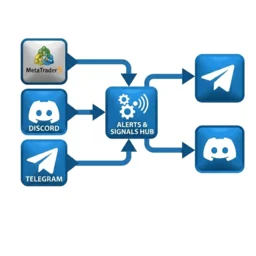
Unzip, run, then do three tasks: add signal sources, create output channels, turn on posting. No need to install Python.
File SignalBroadcaster-x.x.x-setup.zip from the Download button above.
To any folder, for example C:\SignalBroadcaster.
Open the folder you just unzipped, run SignalBroadcaster.exe.
“Windows protected your PC” → More info → Run anyway. Only asks once.
data\ contains your data — output channels, bot tokens, Telegram session, signal templates. Software updates never touch it. Back it up or switch machines, copy this folder. All settings are on the Dashboardpage, in order from top to bottom.
Without a license key, you cannot broadcast to any channel — adding or turning on a channel will be refused. Press the 🔑 button at the top right, enter your key and password.
Control Panel → Signal Sources. Three types — use which ones you need, no need to do all three.
Click + MT5, give it a name to remember, like “Gold Vantage”.
Click Link MT5 then pick the MetaTrader 5 terminal from the list of programs the app finds.
| Button on the account card | Turn on, turn off and buttons |
|---|---|
| Pause watching / Resume watching | Pause watching this account — settings stay saved |
| Filters | Only broadcast certain symbols, magic, or comments |
| Link MT5 | Switch terminal |
| 🗑 | Delete account |
| The | Meaning |
|---|---|
| Only broadcast these symbols | XAUUSD, EURUSD. Empty means all symbols |
| Only broadcast orders with magic | The EA's magic number, separated by comma. Hand-placed orders have magic 0. Empty means all orders |
| Order comment must contain | Case does not matter. Empty means do not check |
Block Connect Telegram → Get API key → phone number with country code → Code 1/2. The software gets the key on its own, you do not copy by hand.
Phone number → Code 2/2 → two-layer password if your account has one. You receive two codes at two different times — that is normal.
Click + Telegram then pick a channel or group you are a member of.
Session is stored in data\telegram_session.session. This file worth the same as your Telegram password — do not send it to anyone.
Discord no official way for software to read signals using a user account. This way breaks Discord terms and your account CAN BE LOCKED. Use a secondary account. The software only READS — does not send signals, does not join or leave servers.
This only applies to READING. The part that sends signals to Discord using webhook is the official way, no risk here.
Click + Discord → check the box that you accept the risk → pick Scan QR (on phone open Discord app → tap profile picture → Settings → Scan QR Code → OK; must scan with Discord app, not regular camera) or paste token by hand. After connecting, pick the server then pick a text channel as the source.
Press the ⚙ button on the input channel card. The card shows Received / Relayed, counted from when you started the app.
| The | Used to |
|---|---|
| Display name | Set it to remember easily |
| Listening | Turn this source on / off |
| Add header to signal | Add source name to the start of each signal. Empty means keep original |
| Only forward signals CONTAINING | Strings separated by comma; signal must contain one of them |
| Skip signals containing | If signal has any string from here, skip it, for example ads |
| Only pass TRADE SIGNALS | Signal must have trade signal keyword and at least one number. Filters out chat, sales pitches |
| Trade signal keyword | Empty means use default buy, sell, long, short |
| Symbol name from source channel | Table GOLD = XAUUSD — you need it when you want to rewrite signals by template |
Control Panel → Output channels.
You need a dedicated bot for this app (create with @BotFather), and the bot must be admin of the channel that will receive signals.
@channel_name (public channel); press Get ID to look up by username; or press 📲 Choose channel/group on Telegram — app opens a link, you press Start then pick the channel right in Telegram, id comes backNo need to invite bot, no need for account token.
To new channels, make sure the path is open first.
At the top of the Output channelssection. The status line changes to “Watching orders and posting · sent N”.
Each channel also has its own button. The choice remembers across app restarts.
Signal template, filter rules by row, how to rewrite input channel signals, log and common problems are on the user guide page.
Usage guide Back to introduction