TradingView Auto — Installation and user guideA Windows app that reads signals on your TradingView chart and trades on MT5 or Binance Futures
Watch on YouTube (with a chapter for each step): https://youtu.be/pYkrCgC2po8
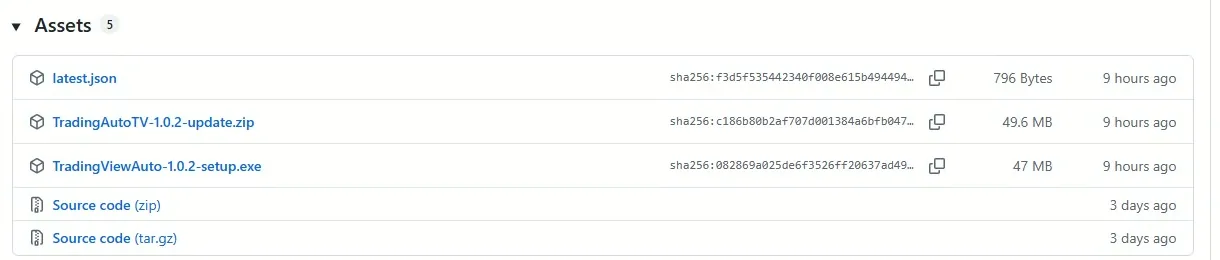
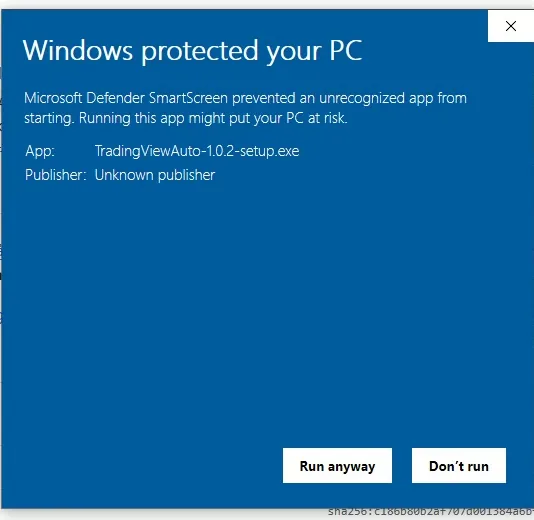
Download TradingViewAuto-setup.exe,
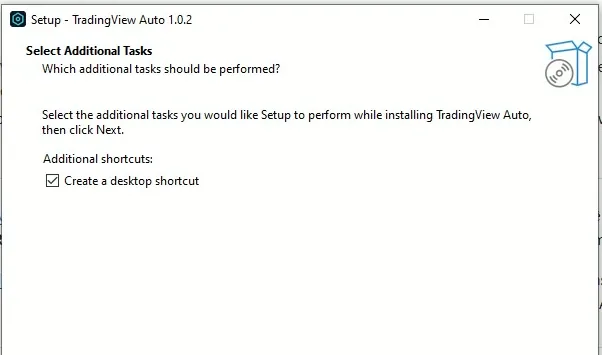
run it and click Next to the end. No Administrator rights needed. It installs to %LOCALAPPDATA%\Programs\TradingAutoTV by default, with a Start Menu shortcut.


The app data (accounts, bots, logs) lives in the data folder next to the program; uninstalling keeps that folder.
The app checks for new versions and updates with a signed package, rolling back by itself if the update fails. The interface is in Vietnamese and English; the Guide section inside the app has every step below.
Watch this step in the video (1:27)Without a key you can still add accounts, create bots, run WATCH ONLY, use the Trade panel (free) and Orders & tools — only bots cannot send new orders.
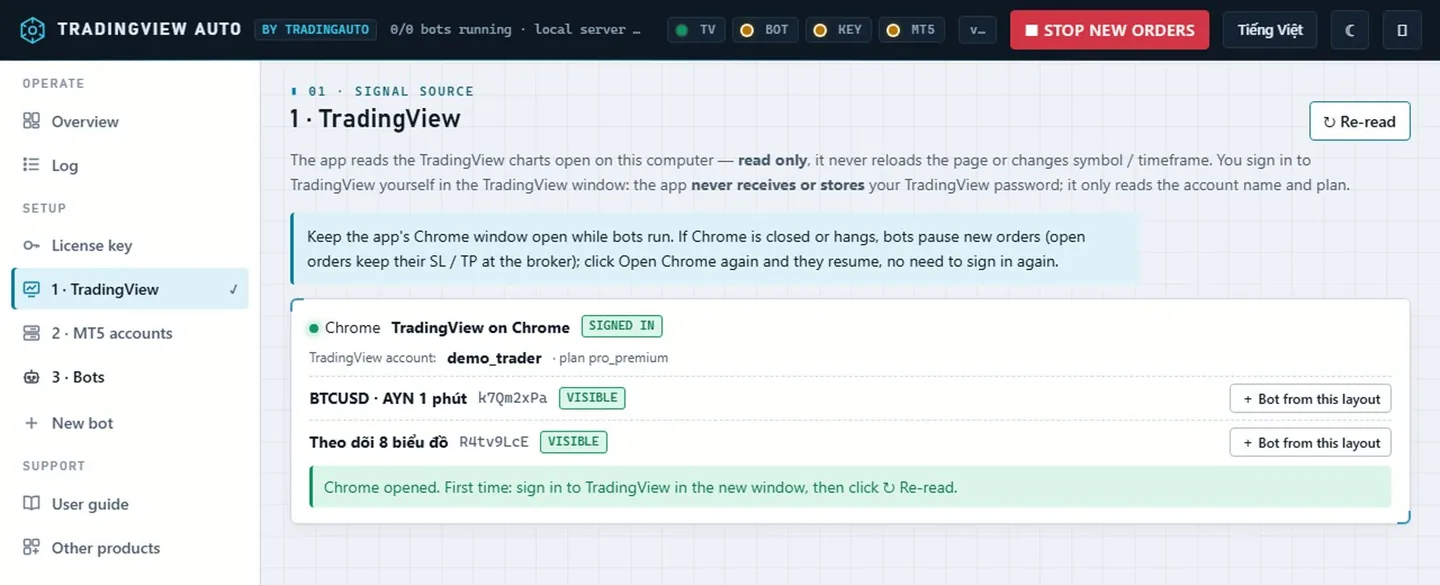
Watch this step in the video (2:47)
Since version 1.3.2, if chart candles freeze while the market is open (e.g. after closing Remote Desktop) the app reloads the chart page by itself, at most once every 10 minutes per layout; signals that appear after the reload are not traded late.
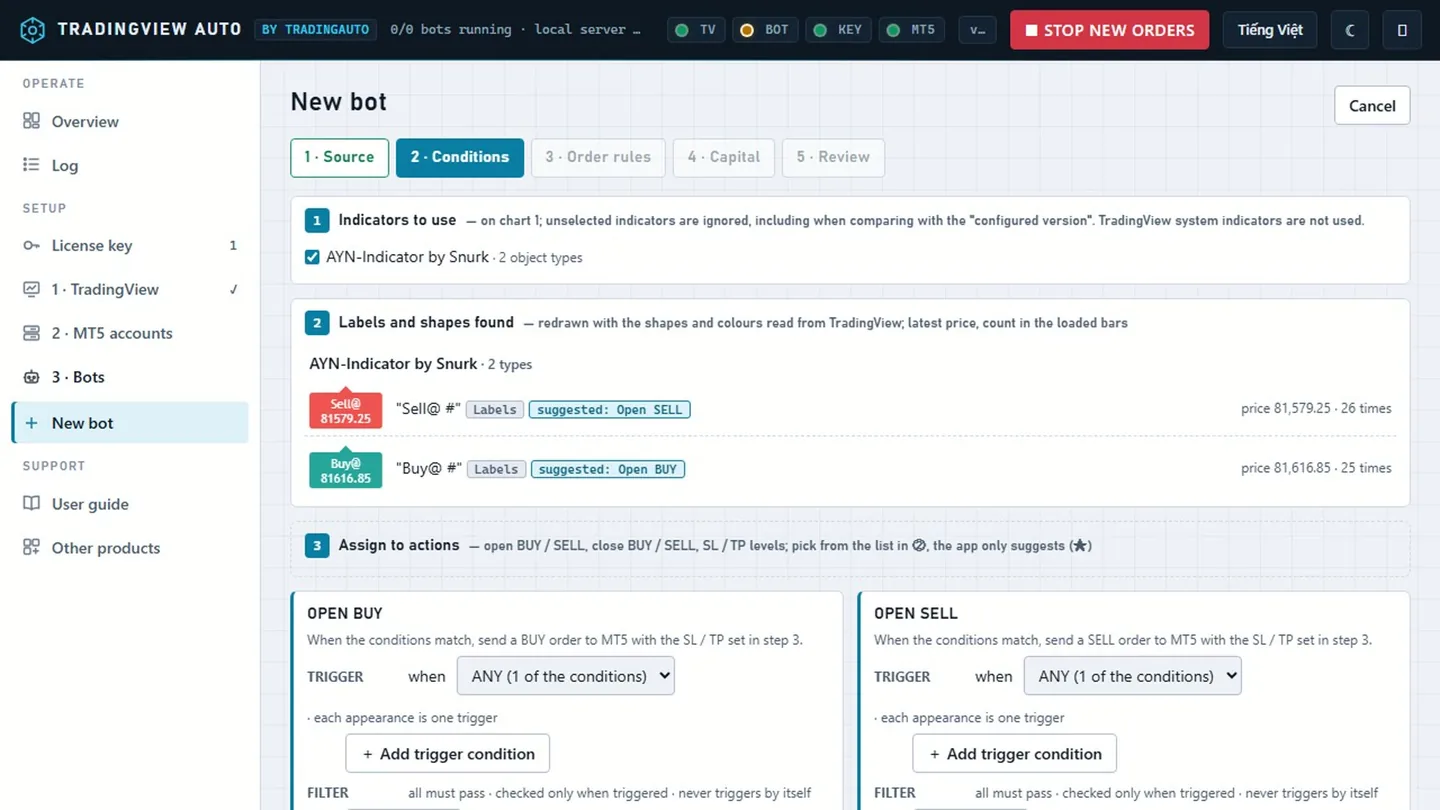
Strategies / indicators the bot watches must be visible on the chart: TradingView does not calculate hidden indicators, so they give no signals.
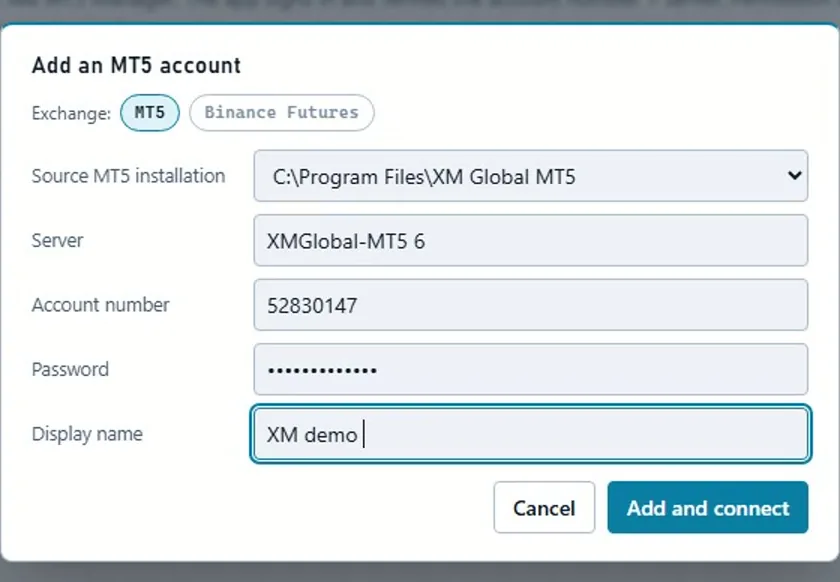
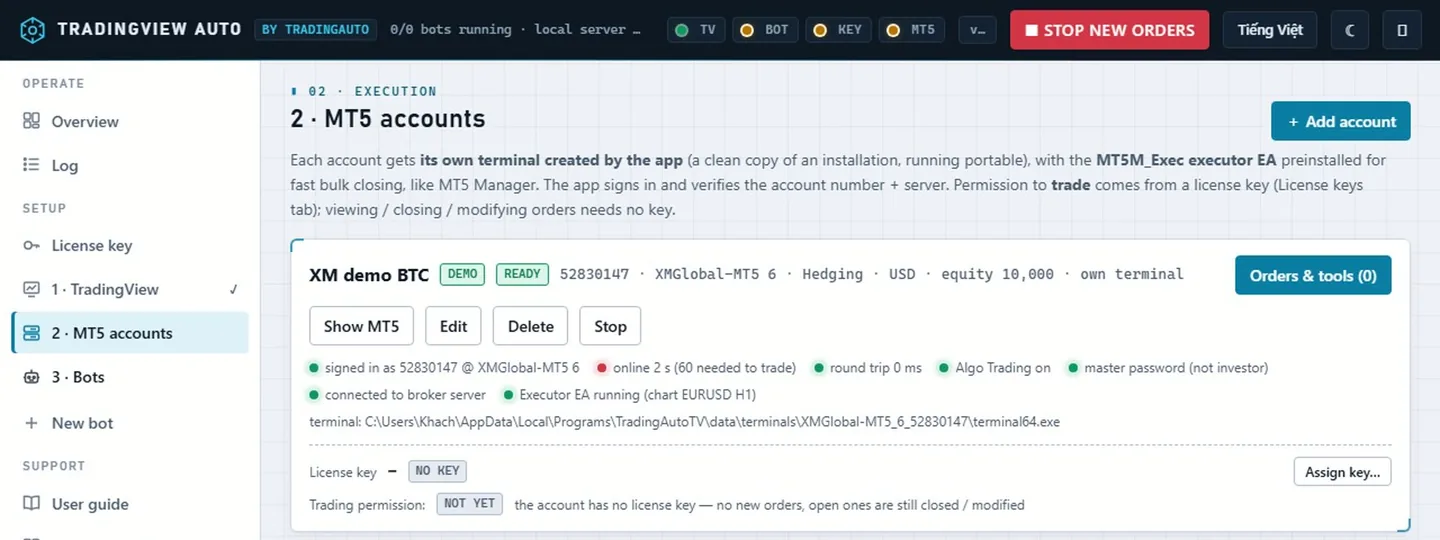
Watch this step in the video (3:11)Trading accounts → + Add account → pick the exchange. Accounts are grouped by exchange; bots trade on every account with this computer's license key (step 2).
MT5 account


Passwords / keys only travel inside the machine (127.0.0.1), are encrypted by Windows as soon as they arrive, are never shown again and never logged.
Binance USDⓈ-M Futures
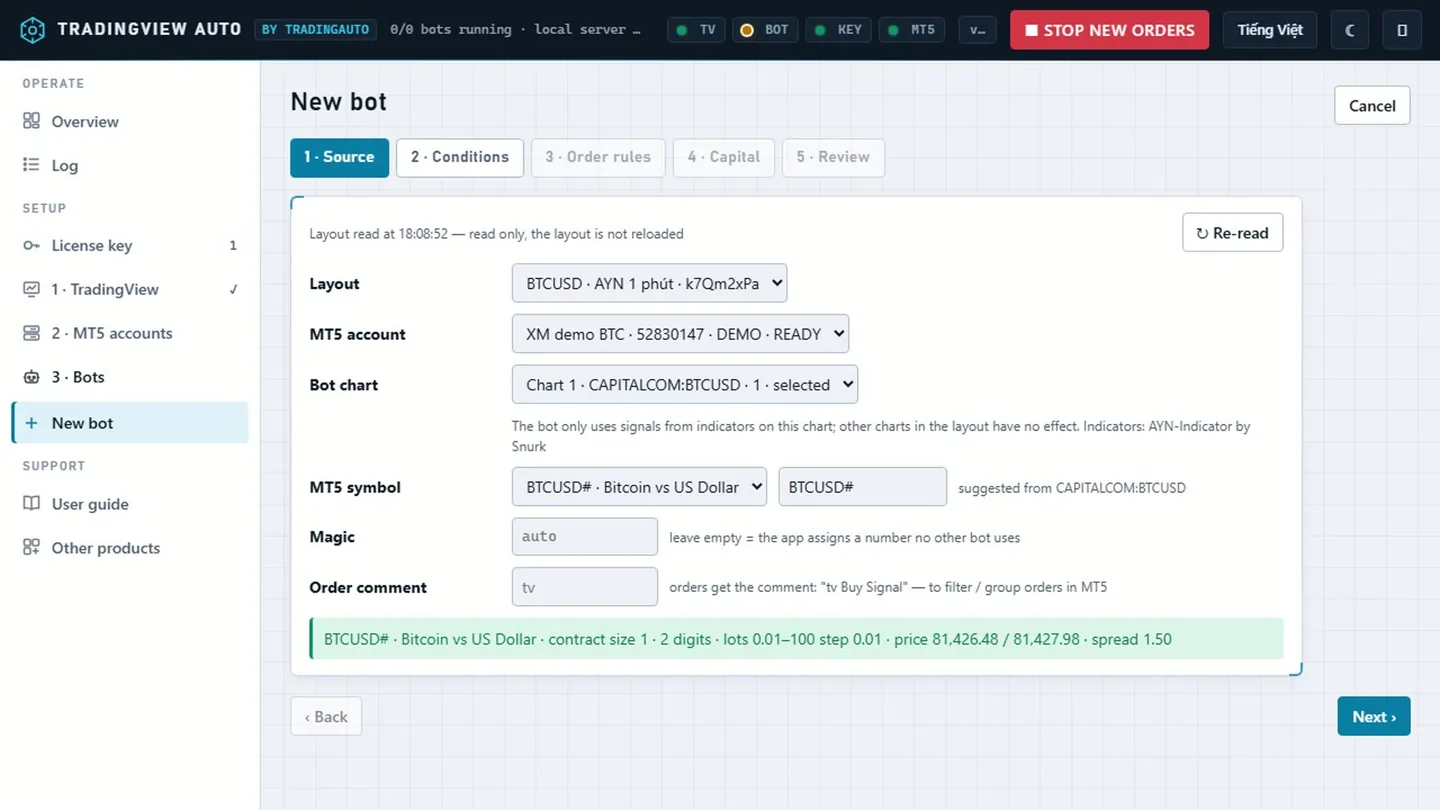
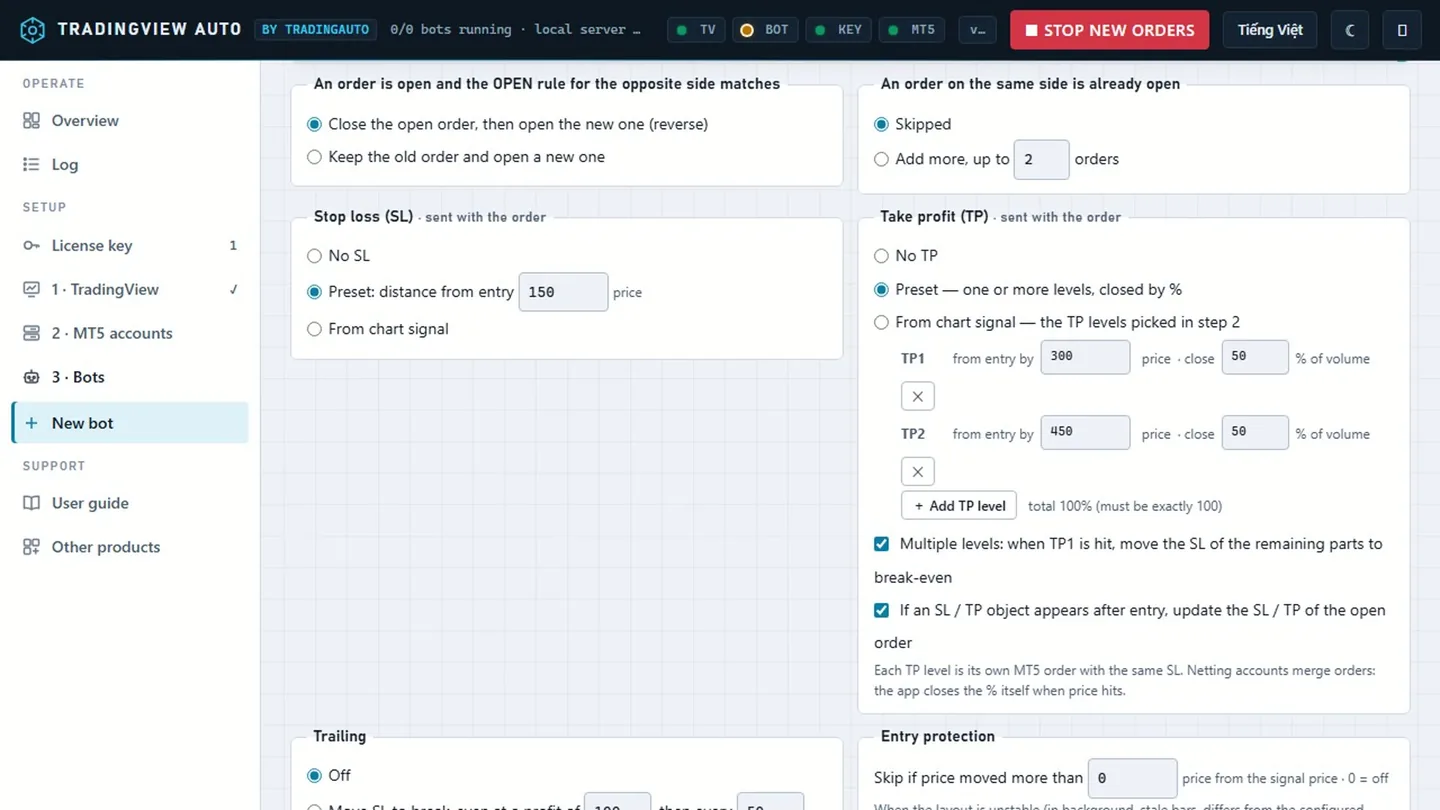
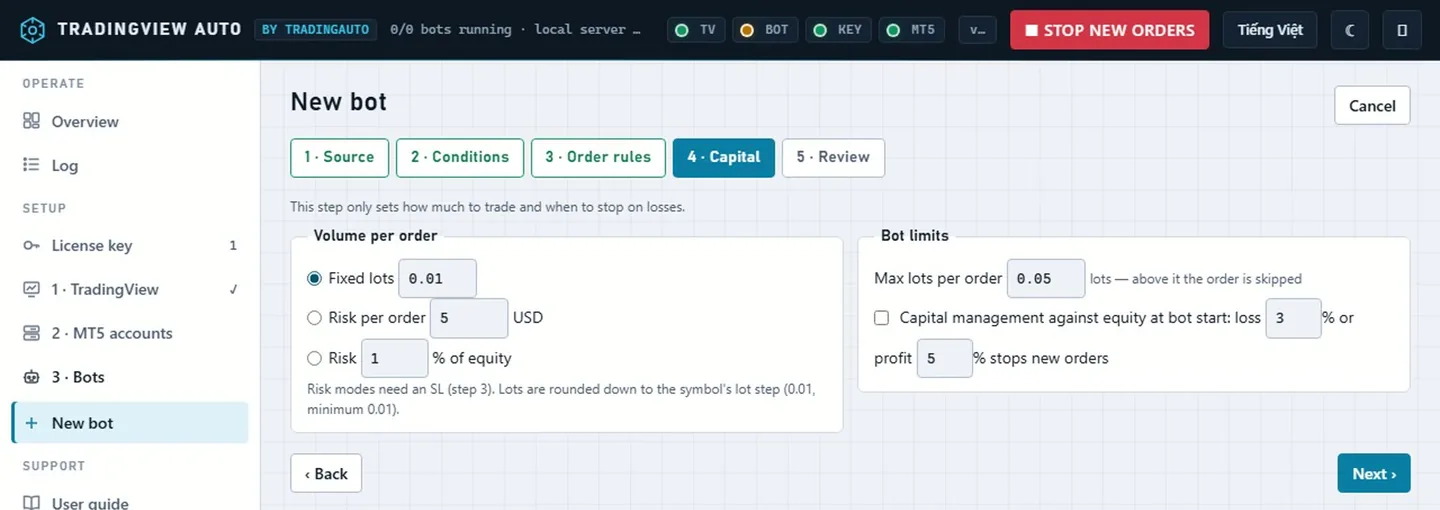
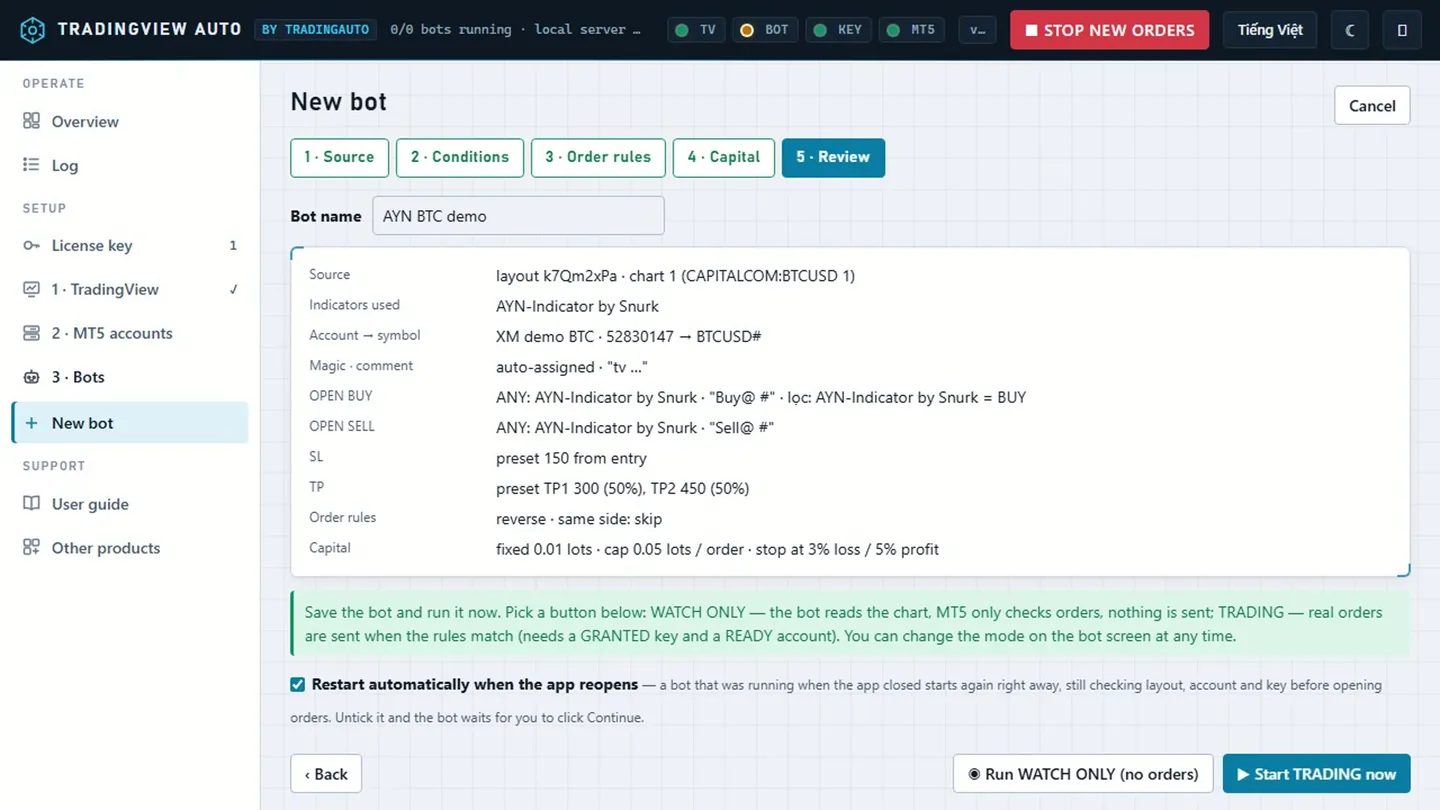
The bot wizard has 6 steps:
Duplicate a bot — need another bot like an existing one (e.g. same indicator on M15, M30, H1…)? Open that bot and click Duplicate — the wizard copies every setting, you only pick another layout / chart and save. The copy is a separate bot with its own magic number.


Screenshots and video are from version 1.0 (5-step wizard); the current version splits Order rules into Entry and Order management, the other steps are unchanged.
Watch this step in the video (4:19)

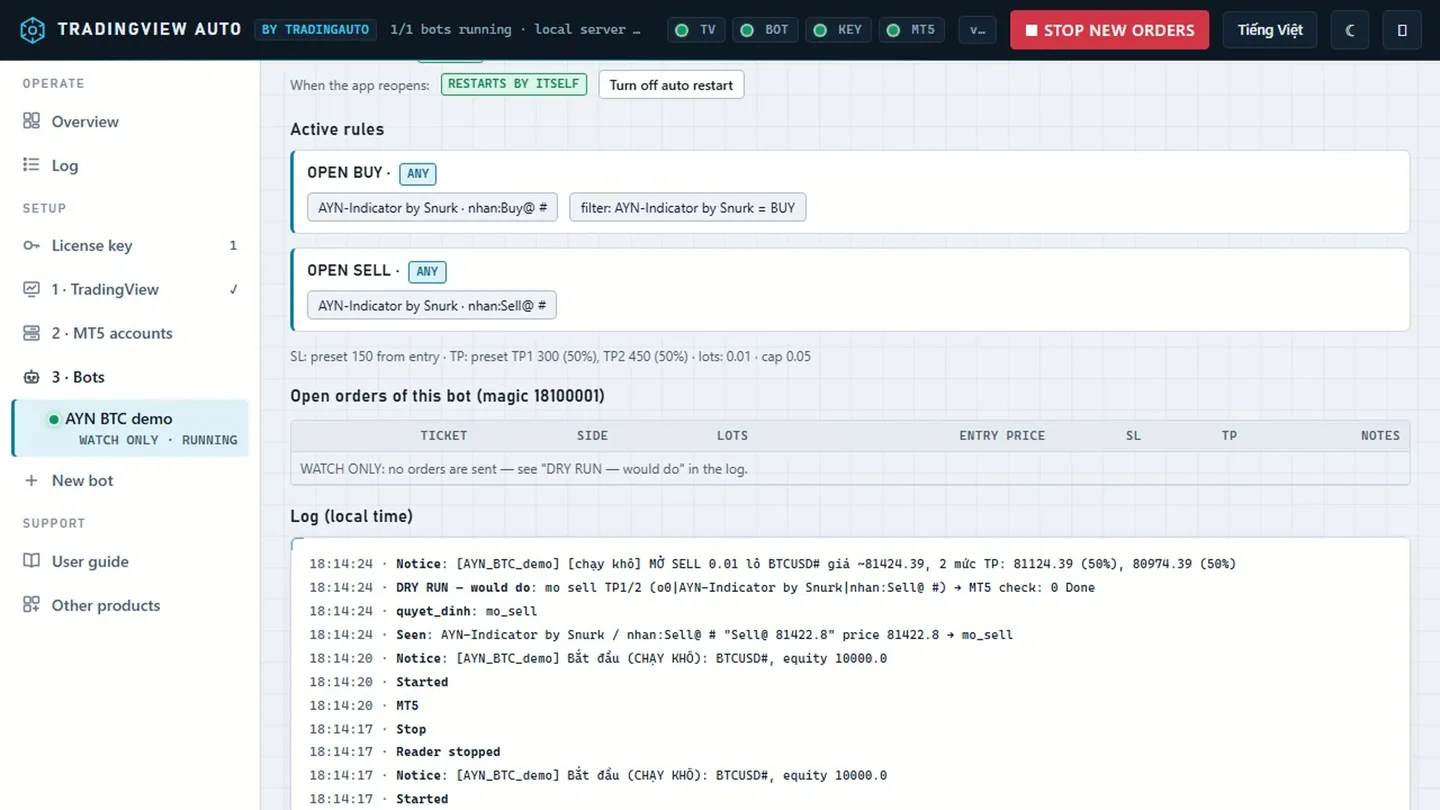
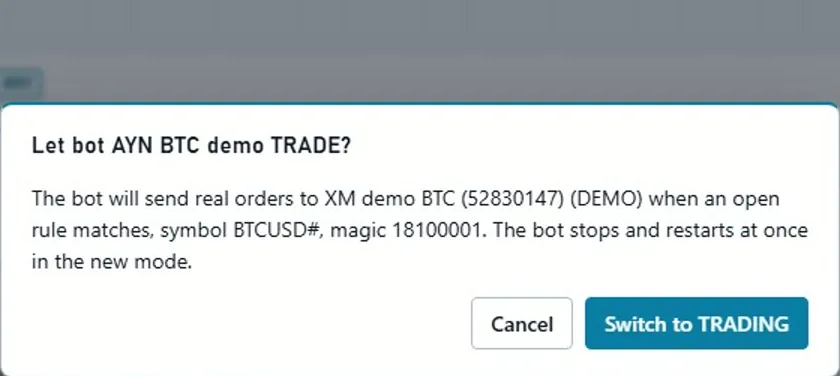
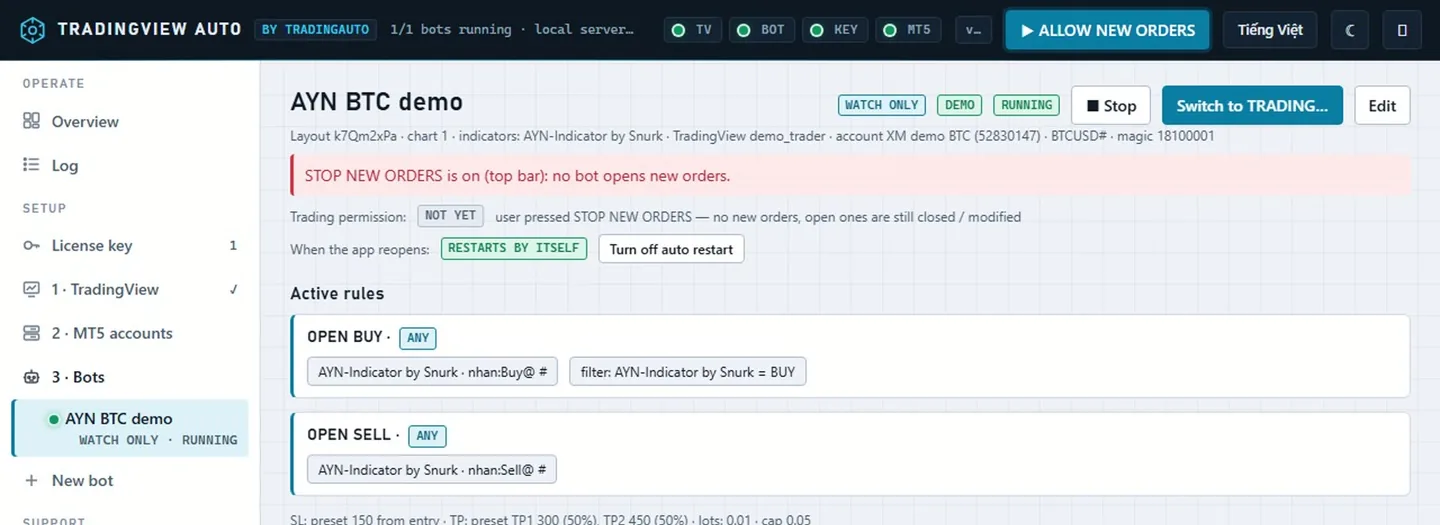
A bot that was running when the app closed restarts by itself when the app opens again (the Restart automatically when the app reopens box, on by default). It still checks everything before opening orders: the right account, the layout matching the configured version, a GRANTED key. With the box off the bot comes back as AWAITING CONFIRMATION until you click ▶ Continue.
Watch this step in the video (7:13)A BUY / SELL button panel right on the TradingView chart: you click, the app places the order on your MT5 / Binance account. Free — no license key needed, the account only has to be READY. Section 3 · Trade panel in the left bar, separate from bots.
The panel wizard has 4 steps:
On the chart: a volume box and SL / TP boxes ("5 10 15" in the TP box = 3 TP levels), a line showing the real lots, money lost / won and R:R beforehand; Reverse, Pending (MT5 only), Close BUY / SELL / all, Close winners, Close losers and Breakeven buttons. Panel orders carry their own magic, so a panel and bots can share an account without mixing orders. Manual-click bots created in version 1.2.0 become panels automatically, keeping their settings and open orders.
The Orders & tools button on an account card opens every open order (including manual and other EAs' orders): quick select by profit / loss / no SL / symbol / magic; close all, close part by %, set SL / TP on many orders at once. Dry run is on by default; turn it off and the app asks for confirmation before sending for real. No license key needed.
The Log section merges events from every bot, account and key, newest first, by level ERROR / ORDER / SIGNAL / WARNING / INFO. Filter by source, bot, level and text, and download exactly the filtered rows as CSV.